
Key Takeaways
- An LMS user role defines a user's position, access, permissions, and responsibilities within the learning management system.
- Administrators, teachers, students, and parents have different roles based on how they interact with courses, learning activities, assessments, and student information.
- Role-based access connects users with the right permissions, workspaces, and activities while keeping the school LMS organized.

An LMS user role defines a user's position within a learning management system and determines the type of access, permissions, and activities associated with that position.
In learning management software for schools, administrators, teachers, students, and parents interact with the same learning environment but have different responsibilities.
In this blog, we explain what LMS user roles are, the main roles used in a school learning management system, how role-based access works, and how these roles connect users with courses, learning activities, and school administration.
What Are LMS User Role?
An LMS user role is a defined user category within a learning management system. The role describes what a person is responsible for and establishes the access and permissions relevant to those responsibilities.
A learning management system typically brings together several types of users. Administrators manage the learning environment, teachers deliver learning, students participate in courses, and parents monitor relevant information about student learning.
The role therefore becomes an important attribute of the LMS user. It provides context for how that user interacts with courses, assessments, learning activities, student information, and administrative functions.
What Are the Different User Role in an LMS?
The main LMS user roles are administrator, teacher, student, and parent. Each role has different responsibilities, permissions, and levels of access within the learning management system.
Administrator
An administrator manages the operational side of the LMS. Administrative responsibilities can include managing users, configuring access, managing staff roles, organizing courses, and overseeing learning activity.
The administrator role is generally associated with management, configuration, access control, and organizational oversight. Schools can also use an LMS to simplify school management and administration.
Teacher/ Instructor
A teacher uses the LMS platform to support teaching and course delivery. Teacher activities can include working with course content, conducting assessments, managing learning activities, and monitoring student progress.
The teacher role is therefore associated with instruction, course delivery, assessment, and learner progress.
Student
A student uses the learning management system as a learner. Student activities can include accessing assigned courses, working with learning content, completing learning activities, participating in assessments, and reviewing progress.
The student role is associated with course participation, learning activity, assessment, and progress.
Read more: How LMS Tracks Student Progress in Real Time?
Parent/ Guardian
A parent has a monitoring and support role within the school learning environment. Depending on the LMS, parents may have access to information about their child's learning, progress, attendance, or other relevant activities.
The parent role is therefore associated with student visibility, progress monitoring, and learning support.
Read more: How an LMS Strengthens Parent-Teacher Communication?
How Does Role-Based Access Work in an LMS?
Role-based access connects a user's role with the permissions and areas of the LMS that the user can access. Instead of giving every account the same access, the learning management system scopes access according to responsibilities.
An administrator may require access to user and course management, while a teacher needs access to teaching and assessment activities. A student requires access to their learning environment, while a parent needs relevant information about their child's learning.
This creates a relationship between user, role, permission, workspace, and activity.
The role establishes the user's position. Permissions define the actions or information available to that role. The workspace provides the environment in which those permissions are used.
What Is the Difference Between an LMS Role and an LMS Permission?
An LMS role identifies the type of user, while an LMS permission defines what that user can access or manage.
For example, “Teacher” is a user role. Permissions associated with that role may determine whether the teacher can create courses, manage assessments, view student progress, or perform other teaching activities.
The relationship between roles and permissions allows an LMS to separate responsibilities without creating completely different systems for every user group.
Read more: What Is the Difference Between an SIS and an LMS?
How Does Quyl Support LMS User Roles?
Quyl supports different LMS user roles by giving each user access to the tools, information, and activities relevant to their responsibilities. In its school learning environment, Admins, Teachers, Students, and Parents have distinct experiences while remaining part of the same connected LMS.
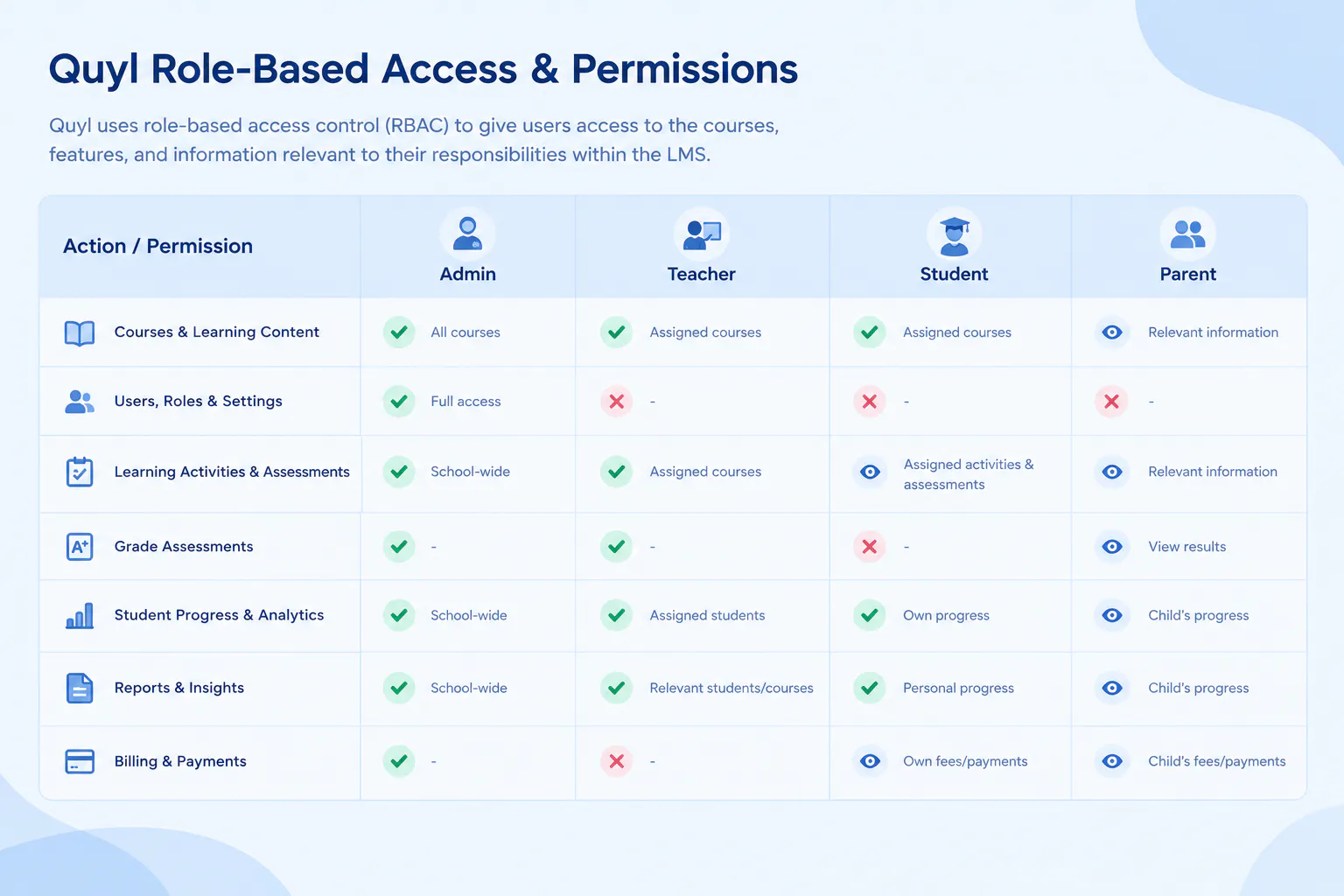
- Admin: Manage staff roles, user access, courses, and school-level LMS activities.
- Teacher: Access assigned courses, manage learning content and activities, conduct assessments, and monitor student progress.
- Student: Access assigned courses, learning content, activities, assessments, and learning progress.
- Parent: View relevant information about their child’s learning and progress.
- Role-Based Access: Connects each role with relevant permissions and workspaces, keeping access aligned with user responsibilities.
Making Every LMS Role Work Together
LMS user roles give schools a structured way to manage different responsibilities within one learning environment.
Administrators, teachers, students, and parents each need different levels of access based on how they interact with courses, learning activities, and student information. Role-based access keeps these responsibilities organized without separating users from the wider school learning environment.
Quyl brings these roles together through dedicated school workspaces, scoped permissions, staff role management, and course assignments, giving schools a structured approach to managing users within one LMS.

